
Short Answer
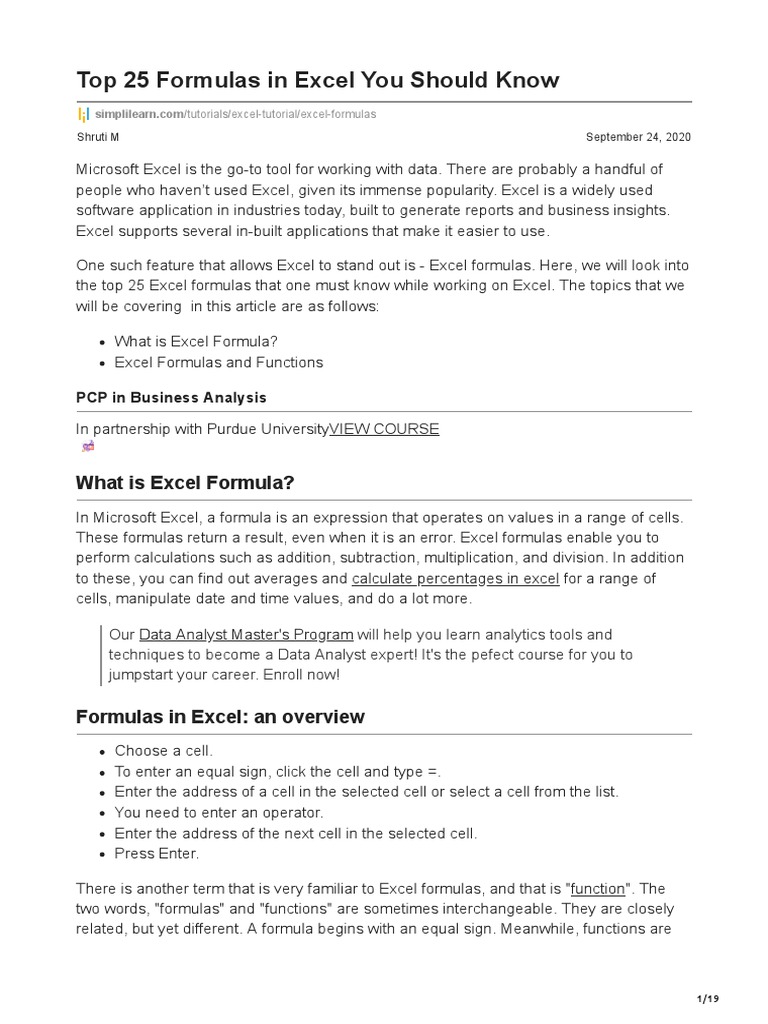
Excel, a stalwart in the realm of data manipulation and analysis, harbors an impressive toolkit of formulas that can transform ordinary spreadsheets into powerful analytical instruments. Whether you are a novice grappling with the basics or a seasoned professional navigating vast datasets, the ability to wield Excel’s formulas can markedly enhance your efficiency and insight. This article elucidates the top ten indispensable Excel formulas that everyone should master—promising not only to elevate your spreadsheet skills but also to shift your perspective on data interaction.
1. SUM: The Fundamental Aggregator
The SUM function is the cornerstone of data analysis in Excel. By simply specifying a range, you can effortlessly consolidate numerical data. The syntax, =SUM(number1, [number2], …), allows you to add individual values or a series of cells. For instance, if you are tracking monthly sales figures, employing SUM can quickly yield total revenue, facilitating insights into performance trends. This formula transforms tedious calculations into a single, elegant command.
2. AVERAGE: Calculate Central Tendency with Finesse
Beyond simply summing data, understanding the mean—or average—of your values provides crucial insight into trends. The formula =AVERAGE(number1, [number2], …) operates seamlessly within datasets. For example, if you wish to ascertain the average score of students in a class, this function will distill your data into a singular, comprehensible figure that highlights overall performance.
3. VLOOKUP: The Search Engine of Excel
In the labyrinth of large datasets, finding specific information can be daunting. Enter VLOOKUP, an invaluable tool for retrieving data from a designated column within a table. This function, articulated as =VLOOKUP(lookup_value, table_array, col_index_num, [range_lookup]), resolves queries like, “What is the price of product X?” by referencing your specified data range. By mastering VLOOKUP, you unlock the ability to juxtapose different information efficiently, making your data exploration much more dynamic.
4. IF: The Conditional Powerhouse
Logic is at the heart of data analysis, and the IF function epitomizes this concept. Designed to return values based on a condition, its syntax—=IF(logical_test, value_if_true, value_if_false)—enables nuanced decision-making directly within your spreadsheets. Whether assessing performance thresholds or applying grading criteria, IF can transform raw data into actionable insights based on predefined conditions.
5. COUNTIF: Filter Counts like a Pro
In the quest to quantify data under specific criteria, the COUNTIF function serves as a precise gauge. The formula is expressed as =COUNTIF(range, criteria), allowing users to count how many cells within a specified range meet a set condition. Picture a sales report: you can easily determine how many transactions exceeded a certain dollar amount, providing pivotal data for strategic decisions. This formula enhances your ability to derive meaningful conclusions from your datasets.
6. CONCATENATE: The Art of Merging Text
Merging disparate text data into a cohesive string can be simplified through the CONCATENATE function, or its successor, CONCAT. By utilizing =CONCATENATE(text1, [text2], …), you can combine names, addresses, or any string of data, making your spreadsheets neater and more informative. Imagine concatenating first and last names into a unified full name; this formula streamlines data presentation and improves readability.
7. MAX & MIN: Discovering Extremes
In any dataset, identifying the maximum or minimum values can reveal critical insights. The formulas =MAX(number1, [number2], …) and =MIN(number1, [number2], …) ensure that finding these outliers is swift and straightforward. Whether it’s determining the highest sales figure of the year or the lowest employee performance score, these functions serve as essential navigators through your data landscape, spotlighting areas of significant interest.
8. INDEX & MATCH: The Dynamic Duo
While VLOOKUP is invaluable, the combination of INDEX and MATCH functions often provides a more flexible solution. By employing =INDEX(array, row_num, [column_num]) and =MATCH(lookup_value, lookup_array, [match_type]), users can dynamically retrieve information without the limitations of fixed column positions. This duo empowers you to perform advanced lookups, enhancing the versatility of your analyses and shifting your approach to data retrieval.
9. TRIM: Cleansing Your Data
Data is not always pristine. The TRIM function—=TRIM(text)—is your ally in ameliorating extraneous spaces from text entries. By ensuring that your data is clean and consistent, TRIM enhances data integrity and facilitates smoother function application. Cleaning data may seem trivial, yet it is a foundational step that vastly improves the accuracy of your analyses.
10. TODAY: Keeping It Current
Finally, the TODAY function, expressed as =TODAY(), instantly returns the current date, making it a vital component for tracking time-sensitive data. It seamlessly updates each day, ensuring that your spreadsheets remain relevant. Whether used in project timelines or financial forecasting, TODAY ensures that your data reflects the present, reminding users that in the world of analysis, staying current is crucial.
Mastering these ten Excel formulas promises not only to refine your spreadsheet skills but also to revolutionize your data processing approach. Each formula serves a distinct purpose, collectively empowering users to analyze, interpret, and visualize their data more effectively than ever before. Embrace these formulas, and watch as they elevate your Excel capabilities, transforming mundane tasks into insightful revelations.
FAQ
What is the SUM formula used for in Excel?
The SUM formula adds together a range of numbers or individual values, helping to quickly total data such as sales figures or expenses.
How does VLOOKUP help in Excel?
VLOOKUP allows you to search for a value in the first column of a range and return a corresponding value from another column, making data retrieval more efficient.
What is the advantage of using INDEX and MATCH over VLOOKUP?
INDEX and MATCH provide more flexibility by allowing lookups without the limitation of fixed column positions and can handle dynamic data ranges better.
Why is the TRIM function important?
TRIM removes extra spaces from text data, ensuring data cleanliness and improving the accuracy of formulas that depend on consistent text input.
How can the TODAY function be used in Excel?
The TODAY function returns the current date, useful for creating dynamic reports, tracking deadlines, or calculating age and durations.





Leave a Reply