
Short Answer
Keeping applications always on top in Windows 10 can significantly boost your productivity and multitasking capabilities. Whether you need a media player to stay visible while working on documents, monitoring real-time data, or simply want quicker access to important tools, there are several methods to achieve this functionality. The following listicle presents different approaches, using built-in features, third-party apps, and simple shortcuts, to keep your desired windows always visible on your desktop.
1. Use AutoHotkey Script
AutoHotkey is a powerful scripting language for Windows that can be used to create a small script to toggle the always-on-top feature. By writing a simple script or downloading a premade one, you can assign a hotkey (e.g., Ctrl + Space) to make any active window stay on top.
2. Utilize DeskPins
DeskPins is a lightweight and free utility that allows you to “pin” any window on top by clicking on it with a pin icon. It’s straightforward, requires no setup, and works well for keeping apps visible without interruptions.
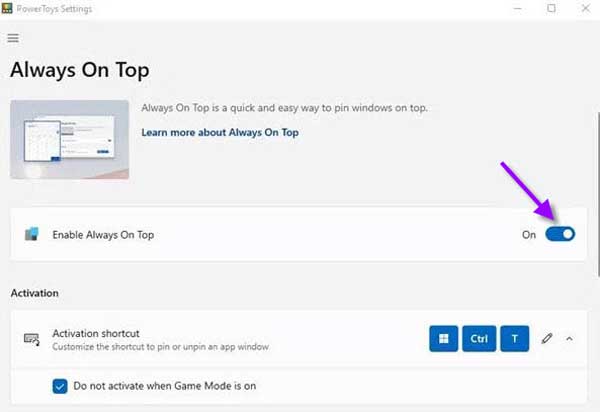
3. Use PowerToys Always On Top Feature
Microsoft’s PowerToys offers an “Always on Top” utility that lets you keep any window on top by using the shortcut Windows + Ctrl + T. It’s integrated cleanly into Windows 10 and doesn’t require any complicated installation.
4. Try OnTopReplica for Window Cloning
OnTopReplica allows you to clone sections of any window and keep the replication on top. This is useful if you only need part of an app (like a video feed or a specific widget) constantly visible while working on something else.
5. Use TurboTop Utility
TurboTop sits in your system tray and gives you a dropdown list of open applications. By selecting any app from the list, you can toggle the always-on-top state easily.
6. Use WindowTop App
WindowTop is a feature-rich tool that lets users keep apps on top, alongside other functionality like window transparency and click-through. It also supports shortcuts and has a user-friendly interface.
7. Built-in Media Player Options
Many media players like VLC or Windows Media Player have built-in “Always on Top” options within their settings, which can be enabled directly without external tools.
8. Use Sticky Notes Always on Top
If you use Windows Sticky Notes for reminders, you can set individual notes to always stay on top. This keeps your notes accessible without them being buried under other windows.
9. Use Third-Party Window Management Tools
Apps like DisplayFusion and AquaSnap offer advanced window management features, including always-on-top toggles for any app. They’re particularly useful for multi-monitor setups and power users.
10. Using Keyboard Shortcuts in Some Browsers
Certain browsers like Google Chrome with extensions such as “Always on Top” allow browser tabs or windows to stay on top. This can be especially handy for monitoring live websites or web apps.
11. Using Microsoft Teams Pin Feature
For collaboration, Microsoft Teams includes the ability to pin chat windows or video feeds on top during meetings to keep communication visible as you work on other apps.
12. Utilize Task Manager’s Always on Top Setting
The Windows Task Manager itself can be set to stay on top via the Options menu. This is useful when monitoring system performance while working on other tasks.
13. Use Floating Apps via Sandbox Environments
Running apps inside sandbox environments or virtual desktops that support floating windows can be an alternative way of keeping essential windows always visible.
14. Using Keyboard Manager for Custom Shortcuts
PowerToys Keyboard Manager allows remapping of keys to create a personalized shortcut to toggle always-on-top apps if paired with scripting tools like AutoHotkey.
15. Use Windows Magnifier Tool
Windows Magnifier can be configured to stay on top and follow the mouse cursor, allowing a zoomed-in overlay that remains visible while using other applications.
16. Pin Chat or Video Apps on Desktop
Some chat apps like Discord offer window mode options and can be pinned on top to maintain visibility for quick communication.
17. Create a Custom Shortcut Using NirCmd
NirCmd is a command-line utility that can control window properties. Advanced users can create shortcuts to toggle the always-on-top state using scripts.
18. Use Virtual Desktops Strategically
While virtual desktops don’t offer always on top by themselves, they can organize apps so you keep certain work visible on one desktop while switching contexts.
19. Use Window Manager Extensions for Browsers
Extensions in browsers like Firefox can keep floating popouts or developer consoles on top, useful for developers or multitaskers who use web apps intensively.
20. Adjust Application Settings for Always on Top
Some productivity apps have their own always-on-top options in preferences, which, when activated, negate the need for third-party tools entirely.
FAQ
How can I keep a window always on top without third-party software?
You can use built-in options like Task Manager's 'Always on Top' setting or media player preferences that allow windows to stay above others.
What is AutoHotkey and how does it help?
AutoHotkey is a scripting language that lets you create custom scripts to toggle always-on-top status for any window using hotkeys.
Are there any risks using third-party always-on-top tools?
Yes, downloading software from unofficial sources may introduce malware or cause system instability, so always use trusted sources.
Can browser tabs be kept always on top?
Yes, some browsers like Chrome support extensions that enable always-on-top functionality for tabs or windows.
What is the benefit of using PowerToys for always-on-top?
PowerToys integrates natively with Windows 10, providing a lightweight, easy-to-use shortcut to toggle always-on-top without extra installation complexity.




Leave a Reply