
Short Answer
Navigating through large datasets in Excel can feel like searching for a clutch home run in a packed stadium—both require precision, timing, and a clear strategy. Excel’s top formulas are your lineup of star players, each ready to tackle the task of pinpointing your best data fast. These formulas act as your MVPs, cutting through the noise to deliver exact insights that transform raw numbers into winning decisions. Here’s a lineup of the top 10 Excel formulas that will help you find your best data swiftly and confidently.
1. LARGE – The Power Hitter for Top Values
The LARGE formula acts like a seasoned slugger, knocking out the highest numbers from your dataset. By specifying the k-th largest value, it’s perfect for instantly identifying your top performers, whether sales figures, scores, or any statistics. Simply use =LARGE(range, k) to get your leaderboard rolling.
2. RANK – The Scorekeeper of Order
Think of RANK as your official scorekeeper, assigning positions based on value. It ranks data points against each other, allowing you to see how each entry stacks up. Use =RANK(number, range, order) to distinguish leaders and laggards quickly.
3. INDEX & MATCH – The Dynamic Duo of Data Lookup
Like a perfectly coordinated double-play, INDEX and MATCH combine to deliver flexible, accurate lookups. INDEX fetches the value, while MATCH finds the position, together overcoming VLOOKUP’s limitations. This pair is indispensable for pulling best-in-class data from complex datasets effortlessly.
4. MAX – The Fastball for the Highest Number
MAX throws a blazing fastball by instantly identifying the single highest number in a dataset. For straightforward queries like “What was the highest sale?” it’s your go-to pitch. Use =MAX(range) to reveal the peak performance with minimal fuss.
5. FILTER – The Bullpen Closer for Targeted Data
FILTER serves as your bullpen closer, isolating data that meets exact criteria with surgical precision. This formula extracts only the records you need, much like a relief pitcher coming in to shut down specific threats in tight spots. It’s especially powerful in Excel’s latest versions.
6. UNIQUE – The Scouting Report for Distinct Entries
Just like scouting for unique talent, UNIQUE sifts through your data to identify one-of-a-kind items. This helps summarize lists without duplicates, providing a clean, clear look at distinct values and enabling focused analysis.
7. IF – The Strategic Manager’s Decision Maker
The IF function mirrors a manager calling plays, making decisions based on conditions you set. It’s essential for categorizing data quickly—like splitting players into “All-Stars” and “Rookies” based on statistical benchmarks.
8. COUNTIF – The Statistician’s Glue
COUNTIF tallies how many times a condition is met, acting like the statistician recording hits during the game. It counts entries that fit criteria, enabling you to measure frequency and identify trends at a glance.
9. CONCATENATE (or TEXTJOIN) – The Team Communicator
Just as a team’s success depends on communication, CONCATENATE or TEXTJOIN merge different pieces of information into a single cell. This helps create meaningful summaries, like combining player names and stats into one comprehensive view.
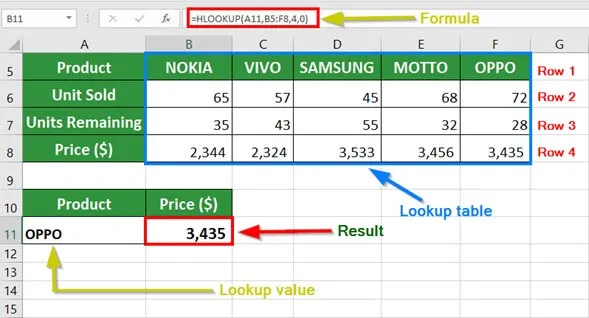
10. VLOOKUP – The Veteran Scout
VLOOKUP has long been a reliable veteran, scanning columns vertically to find matching data. Despite newer formulas, it’s still widely used to tag along and pull best-in-class information quickly across tables, particularly when your dataset is neatly organized.
FAQ
What is the LARGE formula used for?
It returns the k-th largest value in a range, helping to identify the top values in a dataset.
How does the RANK function help in Excel?
RANK assigns a rank to each value in a dataset, showing its position relative to others.
Why combine INDEX and MATCH instead of using VLOOKUP?
INDEX and MATCH offer more flexibility and accuracy than VLOOKUP, especially with large or complex datasets.
What does the FILTER function do?
FILTER extracts rows or columns that meet specified criteria, simplifying targeted data analysis.
Can I use CONCATENATE and TEXTJOIN interchangeably?
Both combine text strings, but TEXTJOIN offers more flexibility with delimiters and ignoring empty cells.





Leave a Reply